Contents
- Requirements
- Download & install
- Your username and password
- Connecting to the VPX
- Disconnecting from the VPX
- 12VPX app documentation
- Update this app!
Requirements
- Latest Windows version. We do not support old versions of Windows.
Download & install
Please start by downloading and installing our 12VPX app for Windows.
Your username and password
These are your username and password for the 12VPX app.
Connecting to the VPX
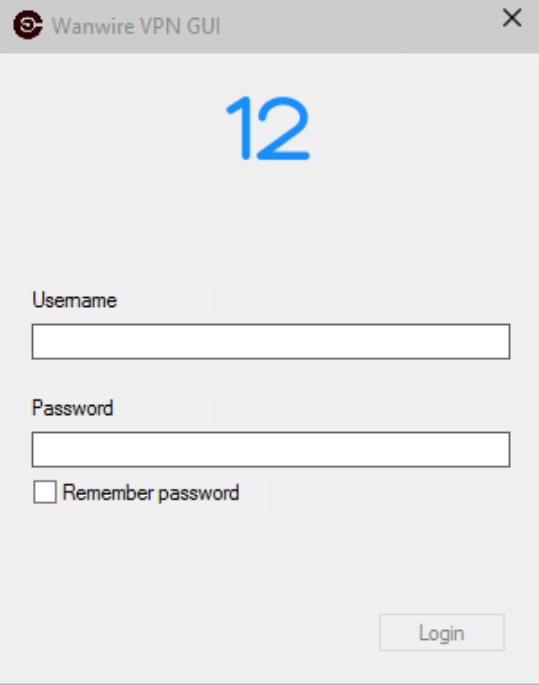
Enter your 12VPX username and password and click Login.
The 12VPX app will connect to our server and download a list of available servers. This may take a minute.
Select the server you wish to connect to and click Connect.

Disconnecting from the VPX
Click the Disconnect button.

12VPX app documentation
Check out the documentation section to learn more about using VPXGUI:
- Connection types
- Preferences
- Connection sharing
- LINE
- Thunderbird
- ..and more!
"Update this app!"
Outdated versions of our app will show you a fake server called Update this app!.
Update the app to the latest version (found on this page) and do a Logout, then Login. (The Logout/Login is necessary to get your normal server list back.)