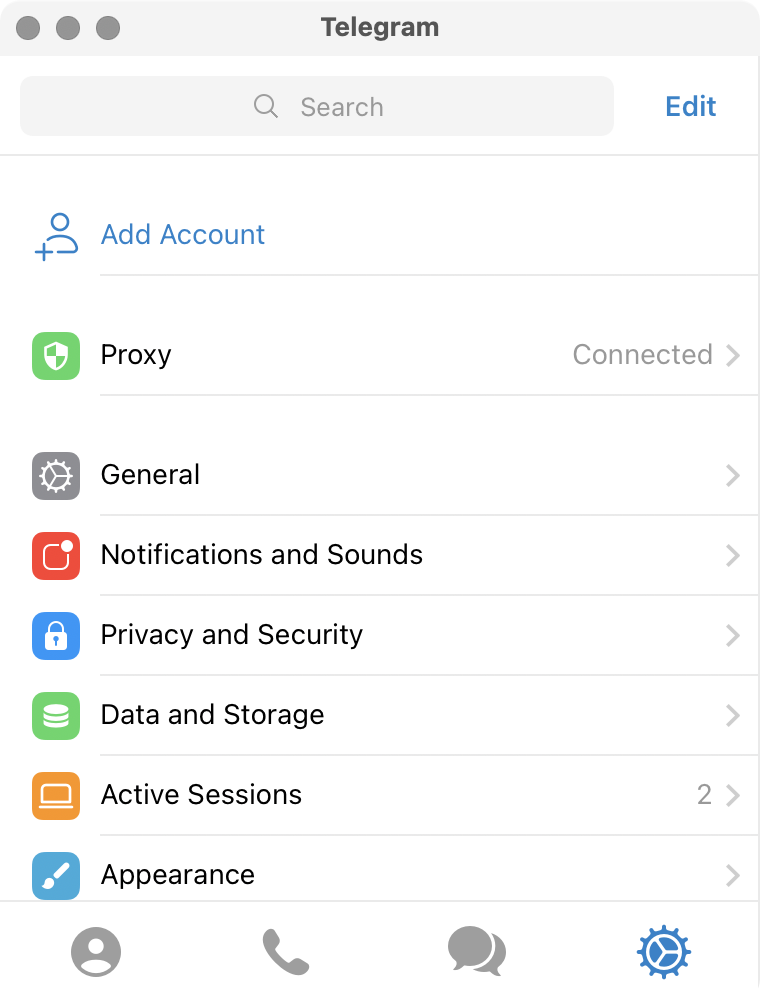
This how-to describes how to use Telegram with VPXGUI in WEB mode.
When using VPXGUI in WEB or XTLS mode, it creates a private proxy server that can be used with apps like Telegram.
Requirements
- VPXGUI connected to a VPX server in WEB or XTLS mode
- Telegram app on Windows or macOS
Configuring Telegram
Start Telegram.
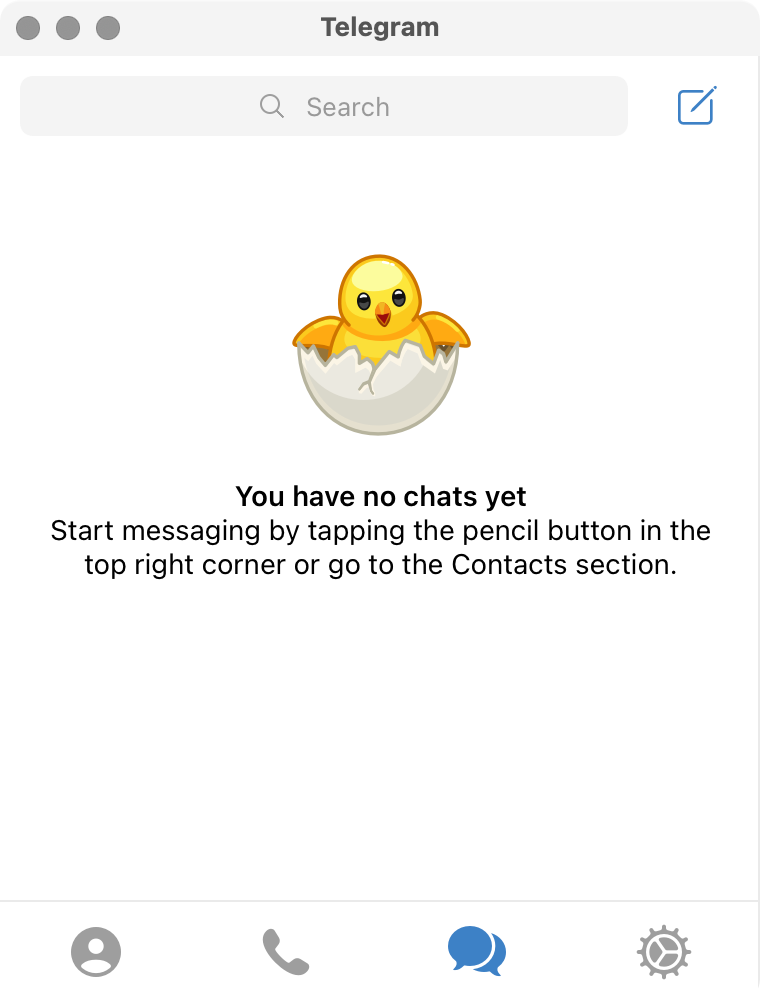
Switch to the Settings tab and search for proxy.
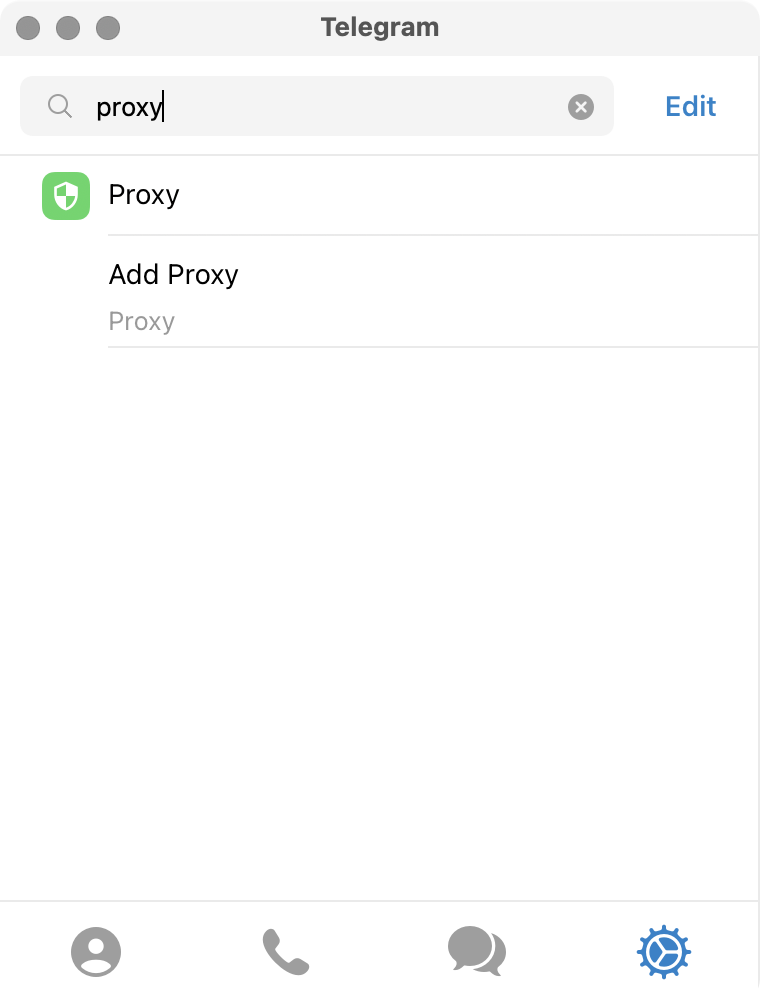
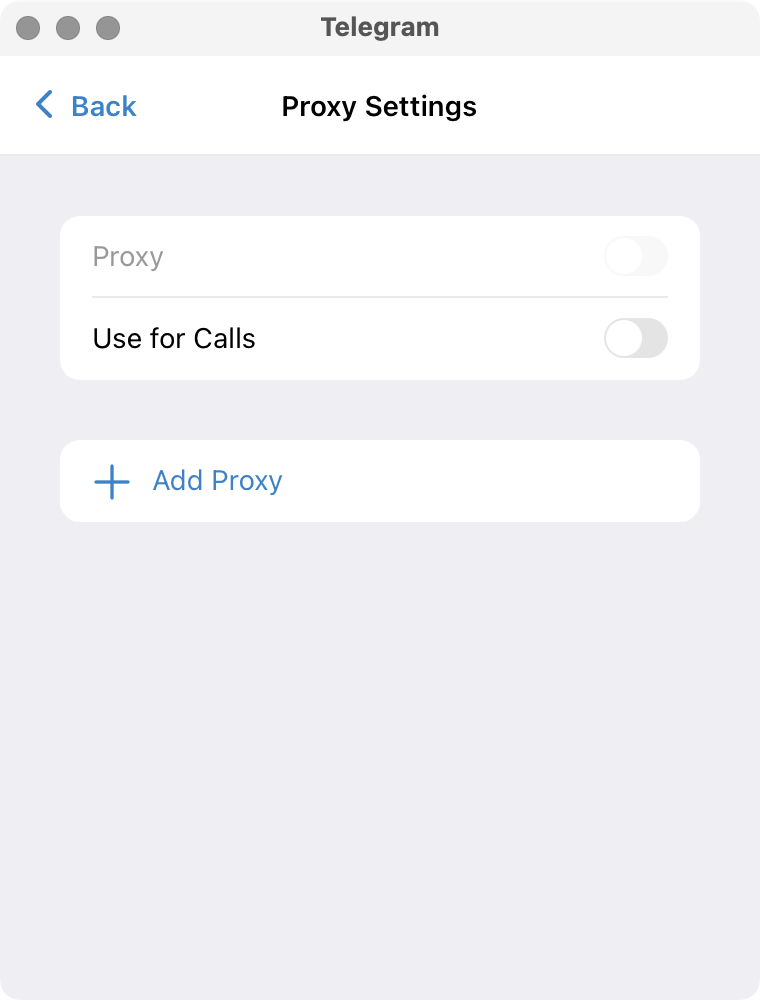
On the Proxy Settings screen click Add Proxy.
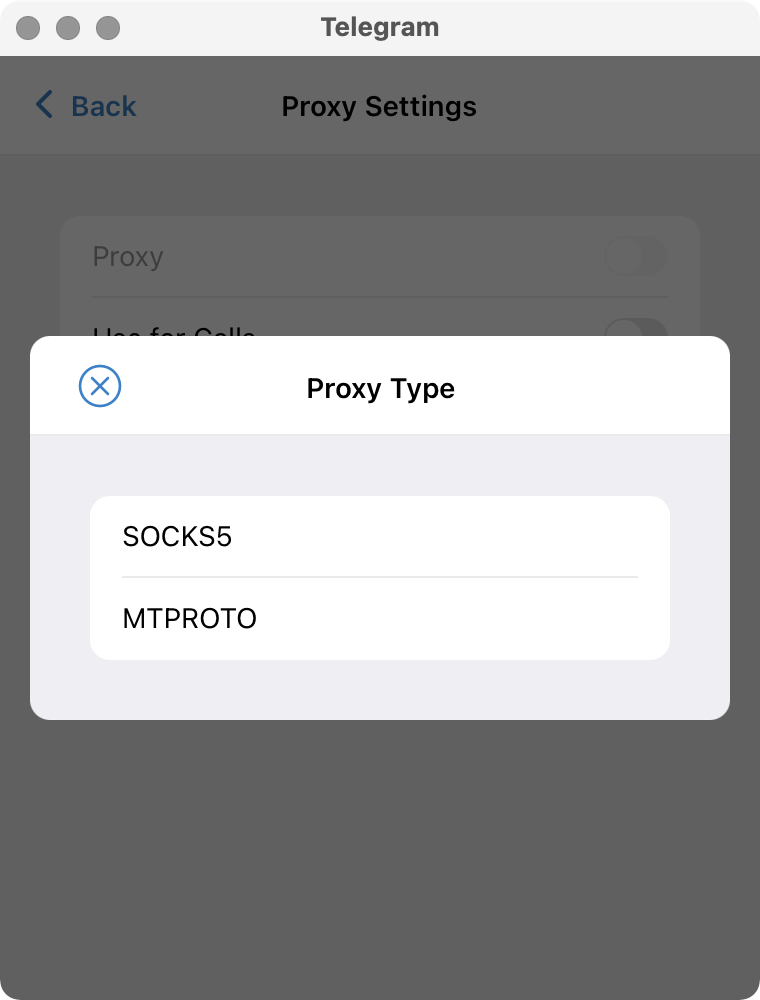
Choose SOCKS5.
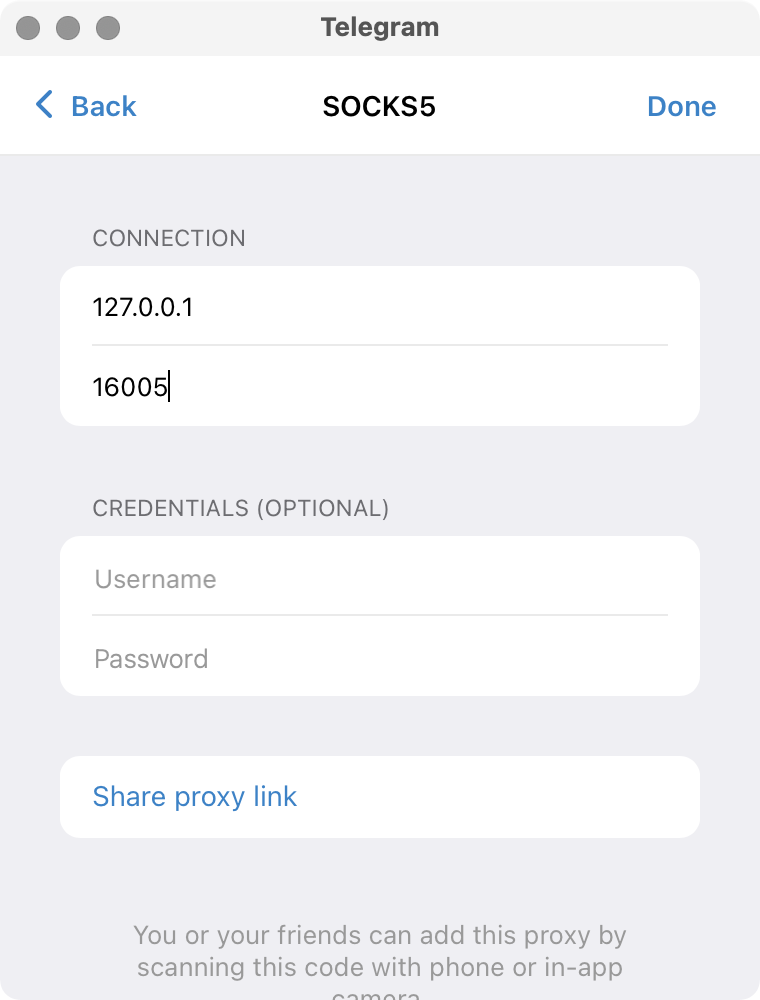
Enter the connection info as shown in our screenshot and click Done.
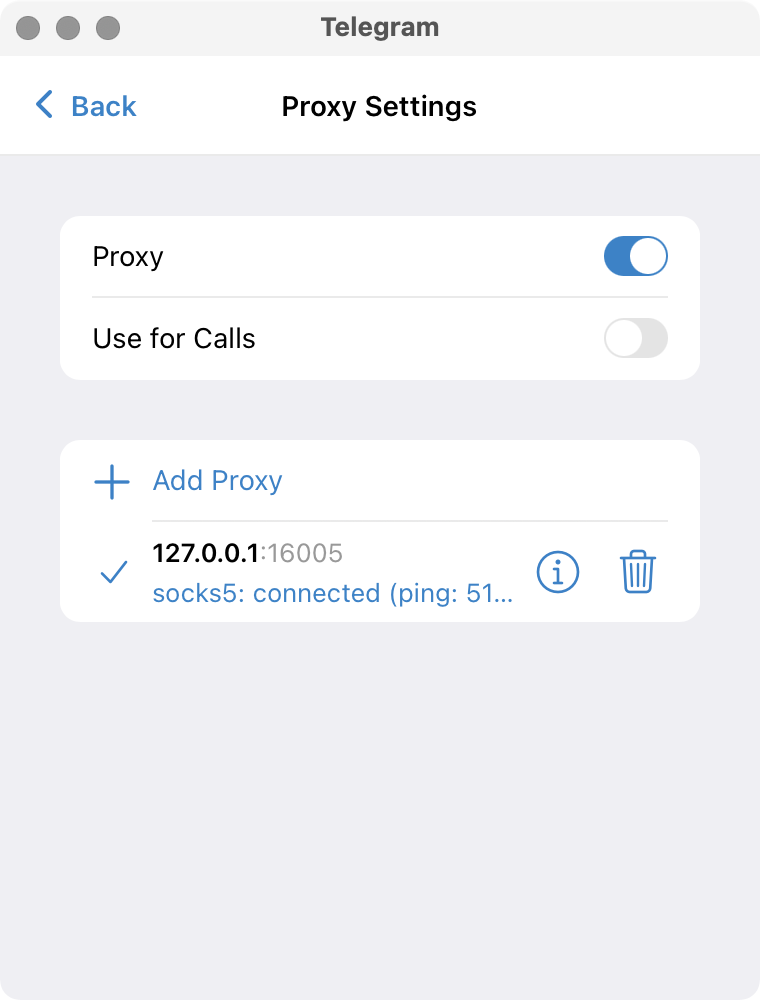
The Proxy Settings screen should now show the proxy as connected.
The proxy status is also available on the main Settings screen.